
Removing Owner Passwords from PDF Files
Here’s a quick blog post on a neat trick I figured out, seemingly undocumented elsewhere across the web, for removing owner passwords from PDFs. This is when you can view a PDF but cannot do one or more of the following things to the PDF:
- Print it
- Copy text or graphics from it
- Add, insert, or rotate pages
- Add annotations or signatures
- Fill form fields
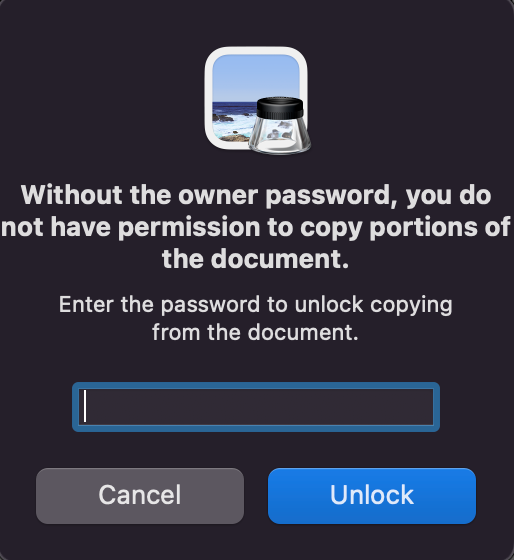
Or make any other changes and redistributing it. In MacOS you’ll get a pop up like this:
There are two ways that a PDF file can be password protected:
- A password being required to view the PDF
- An owner password, which allows for PDF permissions
Below is the user MacOS user interface for protecting PDFs.
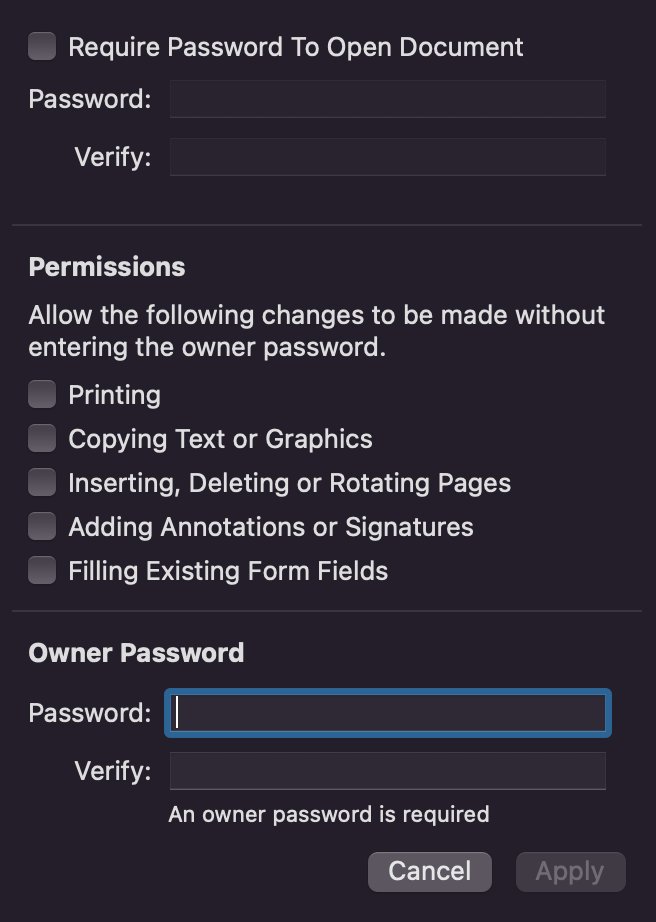
This trick works on removing the owner password but there must be no password preventing you from opening the PDF, or if there is, you must know it.
Everyone knows the built-in MacOS PDF viewer, “Preview” is amazing. This is how we’ll remove the owner password from the protected PDF file. Just follow along:
- Open the sidebar in the Preview application
- Select all the thumbnails for every page in the protected PDF file
- Right click on a thumbnail and choose “Export As”
- Click permissions
- You can now update these permissions to your liking, and input a owner password of your choice (yes I know that’s not really removing the password, but you’re removing all the previously set restrictions)
- Save the PDF file!
- Be happy 😊
‘till next time